11 Proven Fixes: MT5 Expert Advisor Not Working (Prop Firm Guide)
Material update: Site-wide prohibited-phrase cleanup applied on 2026-08-23; editorial review status was not changed.

An MT5 Expert Advisor (EA) typically fails to work due to incorrect platform settings, compilation errors, or broker-specific incompatibilities. Common causes include disabled AutoTrading, incorrect symbol names, or issues with the EA's internal logic, often indicated by a blue hat icon on the chart.
- Enable AutoTrading in MT5 and on the chart for the specific EA.
- Verify all EA input parameters and general settings are correctly configured.
- Check the MT5 Experts and Journal tabs for specific error messages.
- Ensure the EA is compiled and compatible with your current MT5 build version.
- Confirm broker symbol suffixes (e.g., EURUSD.pro) match the EA's configuration.
Why is my MT5 EA not trading?
An MT5 Expert Advisor that is not trading is most frequently blocked by basic setup and platform configuration settings: AutoTrading switched off in the MT5 toolbar, 'Allow Algorithmic Trading' left unchecked in the EA's chart properties, or input parameters the broker will not accept. Working through the platform level and chart level checks below clears the most common causes.
Enable AutoTrading: The Gray Button & Chart Icon
A crucial first step is ensuring AutoTrading is enabled both at the platform level and for the specific chart. Many traders find their EA remains inactive because the 'AutoTrading' button in the MT5 toolbar is grayed out or the chart's EA icon is blue instead of green.
Platform Level: Locate the 'AutoTrading' button in the toolbar at the top of your MT5 platform. It should be green, indicating it's active. If it's red, click it to enable. This global setting permits all EAs across the platform to operate.
Chart Level: Even with platform AutoTrading enabled, each individual chart where an EA is attached has its own AutoTrading setting. Right-click on the chart, select 'Expert Advisors', then 'Properties'. In the 'Common' tab, ensure 'Allow Algorithmic Trading' is checked. Additionally, confirm 'Allow DLL imports' and 'Allow WebRequest for listed URL' (if applicable to your EA) are also checked. If these are not enabled, your MT5 Expert Advisor not working issue could be a simple fix.
Correctly Attaching the EA to a Chart
An EA must be properly attached to a chart for it to function. The easiest method is to navigate to the 'Navigator' window (Ctrl+N), expand 'Expert Advisors', and then drag and drop your desired EA onto the chart of the currency pair or instrument you wish to trade. Alternatively, double-clicking the EA in the Navigator window will open its properties dialog for the active chart.
After attaching, verify that a small icon (a hat) appears in the top-right corner of the chart. If this icon is blue, the EA is attached but not active; if it's green, it's active and running. A red icon indicates an error or that AutoTrading is disabled at the platform level.
Checking EA Properties and Input Parameters
Incorrect input parameters are a common reason an MT5 Expert Advisor is not working. When you attach an EA or open its properties (F7), you'll see several tabs: 'Common', 'Inputs', 'Dependencies', and 'About'.
- Common Tab: Reconfirm 'Allow Algorithmic Trading', 'Allow DLL imports', and 'Allow WebRequest' as mentioned above.
- Inputs Tab: This is where you configure the EA's specific strategy parameters like lot size, stop loss, take profit, magic numbers, slippage, and time filters. Double-check every setting. A common mistake is setting a lot size too small for your broker's minimum trade size, or a stop loss/take profit level that's too close to the current price, preventing orders from being placed. Ensure 'Show confirmation dialog' is unchecked if your EA is designed for fully automated trading without manual intervention.
Ensuring DLL Imports & WebRequests are Enabled
Some advanced EAs rely on external libraries (DLLs) or communicate with web services (WebRequests) for license verification, news feeds, or data fetching. If your EA utilizes these features, you must explicitly enable them in the EA's 'Common' properties tab and potentially in MT5's global 'Tools > Options > Expert Advisors' settings. For WebRequests, add the specific URLs provided by your EA developer to the allowed list.
How do I read MT5 Journal and Experts tab errors?
MT5 records Expert Advisor activity in the 'Terminal' window (Ctrl+T), where the 'Experts' tab logs the actions and errors produced by your EAs and the 'Journal' tab logs general platform messages. Opening both tabs and reading the entries written at the moment the EA failed is the most direct source of diagnostic information when an MT5 Expert Advisor is not working.
Understanding Common Error Messages
The 'Experts' tab logs all actions and errors related to your EAs. The 'Journal' tab provides more general platform messages. Here are some common error types you might encounter:
- Trade Errors: Messages like 'Trade is disabled', 'Not enough money', 'Invalid price', 'Invalid lots', 'Off quotes', 'Market is closed'. These usually indicate a problem with the trade parameters or broker conditions.
- Initialization Errors: 'OnInit function failed', 'EA could not be initialized'. This often points to issues within the EA's code, such as missing files, invalid input parameters, or a dependency that couldn't load.
- Permissions Errors: 'Algorithmic Trading is disabled', 'DLL imports are not allowed'. These confirm the settings issues discussed in the basic setup section above.
- Broker-Specific Errors: Messages indicating a specific broker rule has been violated (e.g., 'Too many open orders', 'Order rejected by dealer').
Logging and Debugging Strategies
For custom EAs or those you're developing, developers often include logging statements within the code (e.g., Print() or Comment() functions in MQL5) to output status messages to the 'Experts' tab. Review these messages carefully to trace the EA's execution path and identify where it's failing. For complex issues, using the MetaEditor debugger (F9 for breakpoints, F5 to run) can be invaluable for stepping through the code line by line.
What the "Blue Hat" Really Means
The blue hat icon in the top right corner of your chart is a visual indicator that your EA is attached but not currently active in algorithmic trading mode. This typically means one or more of the following conditions are not met:
- The global 'AutoTrading' button on the MT5 toolbar is red (disabled).
- 'Allow Algorithmic Trading' is unchecked in the EA's properties for that specific chart.
- The EA's
OnInit()function failed during initialization, preventing it from starting correctly. - There might be an issue with the EA's license or an external dependency that prevents activation.
To turn the blue hat green, ensure all the basic setup steps from the first section are correctly applied, and check the 'Experts' tab for any initialization errors.
Why does my EA stop working after an MT5 update?
An Expert Advisor that stops working after an MT5 update usually needs recompiling in the latest MetaEditor, because MetaTrader 5 updates can change MQL5 language elements and internal functions that older compiled EAs depend on. Missing dependencies such as custom indicators or library files, and logic flaws inside the EA's own code, are the other reasons the MQL5 side of an EA fails once the platform settings are correct.

Recompiling Your EA: Compatibility with Latest MT5 Builds
MetaTrader 5 receives regular updates, and sometimes these updates introduce changes to the MQL5 language or internal functions that can break older EAs. If your EA was compiled with an older build of MT5, it might not run correctly on a newer version. The solution is often to recompile the EA using the latest MetaEditor. Open the .mq5 source file in MetaEditor (F4), then click 'Compile' (F7). Even if no errors are reported, recompiling can sometimes resolve compatibility issues.
Missing Dependencies: Custom Indicators & Libraries
Many EAs rely on custom indicators or external libraries (e.g., .mqh files for includes, or other .mq5/.ex5 files) that must be present in specific folders within your MT5 data directory. If these dependencies are missing, outdated, or placed in the wrong directory (e.g., an indicator required by an EA is in MQL5/Indicators/Examples instead of MQL5/Indicators), the EA will fail to initialize. Check the EA developer's documentation for any required external files and their correct placement.
Runtime Errors and Logic Flaws
Even if an EA compiles without errors, it can still have logical flaws that prevent it from placing trades or managing positions correctly. This could include:
- Incorrect Symbol Handling: The EA expects a specific symbol name (e.g., 'EURUSD') but the broker uses a variant (e.g., 'EURUSD.pro').
- Timeframe Mismatch: The EA is designed for a specific timeframe (e.g., H1) but is attached to a different one (e.g., M5), leading to incorrect calculations.
- Incorrect Order Sizing: The EA attempts to open a trade with a lot size that violates the broker's minimum or maximum limits, or exceeds available margin.
- Unforeseen Market Conditions: The EA's logic might not account for extreme volatility, low liquidity, or specific news events, leading to unexpected behavior or trade rejections.
Reviewing the EA's logic with its developer or testing extensively on a MetaTrader 5 demo account can help identify these issues.
Why won't my EA trade on my broker's symbols?
An EA that will not trade on a broker's symbols is usually looking for a symbol name the broker does not use, such as 'EURUSD' when the broker lists that pair as 'EURUSD.pro'. Broker differences in minimum lot sizes, order execution policies and server latency are the other trading environment discrepancies that stop an MT5 Expert Advisor from working as expected.
Symbol Names and Suffixes (e.g., EURUSD.pro vs EURUSD)
One of the most frequent causes of an EA failing to trade is a mismatch in symbol names. While an EA might be coded to trade 'EURUSD', your broker might use a suffix like 'EURUSD.pro', 'EURUSDm', or 'EURUSD_ECN'. The EA will not recognize the symbol and thus won't place trades. Always verify the exact symbol names used by your broker in the 'Market Watch' window (Ctrl+M) and ensure your EA's input parameters or internal code are configured to match these precisely.
Minimum Trade Sizes and Order Execution Policies
Different brokers have varying minimum and maximum lot sizes, as well as distinct order execution policies (e.g., market execution, instant execution, or specific fill-or-kill rules). If your EA attempts to place an order with a lot size below the broker's minimum (e.g., 0.01 lots when the minimum is 0.1 lots) or uses an order type not supported, the trade will be rejected. Similarly, brokers might have rules regarding stop loss/take profit distances from the current price, or maximum slippage, which can lead to rejected orders if the EA doesn't account for them.
Server Latency and Connectivity Issues
High latency between your MT5 terminal and the broker's server can cause delays in order submission and execution, leading to 'Requote' errors or trades being placed at unfavorable prices, especially for scalping EAs. Ensure you have a stable internet connection and consider using a Virtual Private Server (VPS) located close to your broker's server to minimize latency. Firewalls and antivirus software can also interfere with MT5's connection, so ensure they are configured to allow MT5 traffic.
Why did my EA fail my prop firm challenge?
An Expert Advisor fails a prop firm challenge when its trading breaches the funding company's rules: exceeding the daily or maximum drawdown limits, trading through restricted high-impact news events, or ignoring the firm's other stringent requirements. Even a profitable EA is stopped this way, because the prop firm terminates the account rather than the platform blocking the EA. JPTradingCapital specializes in tools for this exact environment, offering EAs pre-configured with strategies that respect these rules. Our JPTC EA Hub is designed with prop firm compatibility in mind.
Adhering to Daily & Max Drawdown Rules
Prop firms like FTMO, FundedNext, and FXify enforce strict daily and maximum drawdown limits. While an EA might be profitable, if its strategy leads to a drawdown that exceeds these limits, the prop firm account will be terminated, effectively stopping the EA from working further. EAs must be designed or configured with risk management parameters that explicitly respect these limits. For example, FTMO's official rules page specifies a 10% maximum drawdown limit and a 5% daily drawdown limit for most accounts. An EA that exceeds these, even temporarily, will fail the challenge.
Avoiding News Trading Restrictions & High Impact Events
Many prop firms restrict or penalize trading during high-impact news events. EAs that continuously trade without a news filter can violate these rules, leading to account termination. It's crucial to integrate news filters into your EA or manually disable it during such periods. JPTradingCapital's EAs often include built-in features to manage trading around news events, helping traders navigate these restrictions and improve their chances of passing prop firm evaluations.
Server Types and Latency for Prop Firm Trading
Prop firms often use specific server setups that might differ from standard retail brokers. High-frequency EAs are particularly sensitive to latency. Using a VPS optimized for low latency to the prop firm's servers is highly recommended. Our research shows that even a few milliseconds of difference can impact the performance and reliability of an EA, especially during volatile market conditions.
Using EAs Designed for Prop Firms
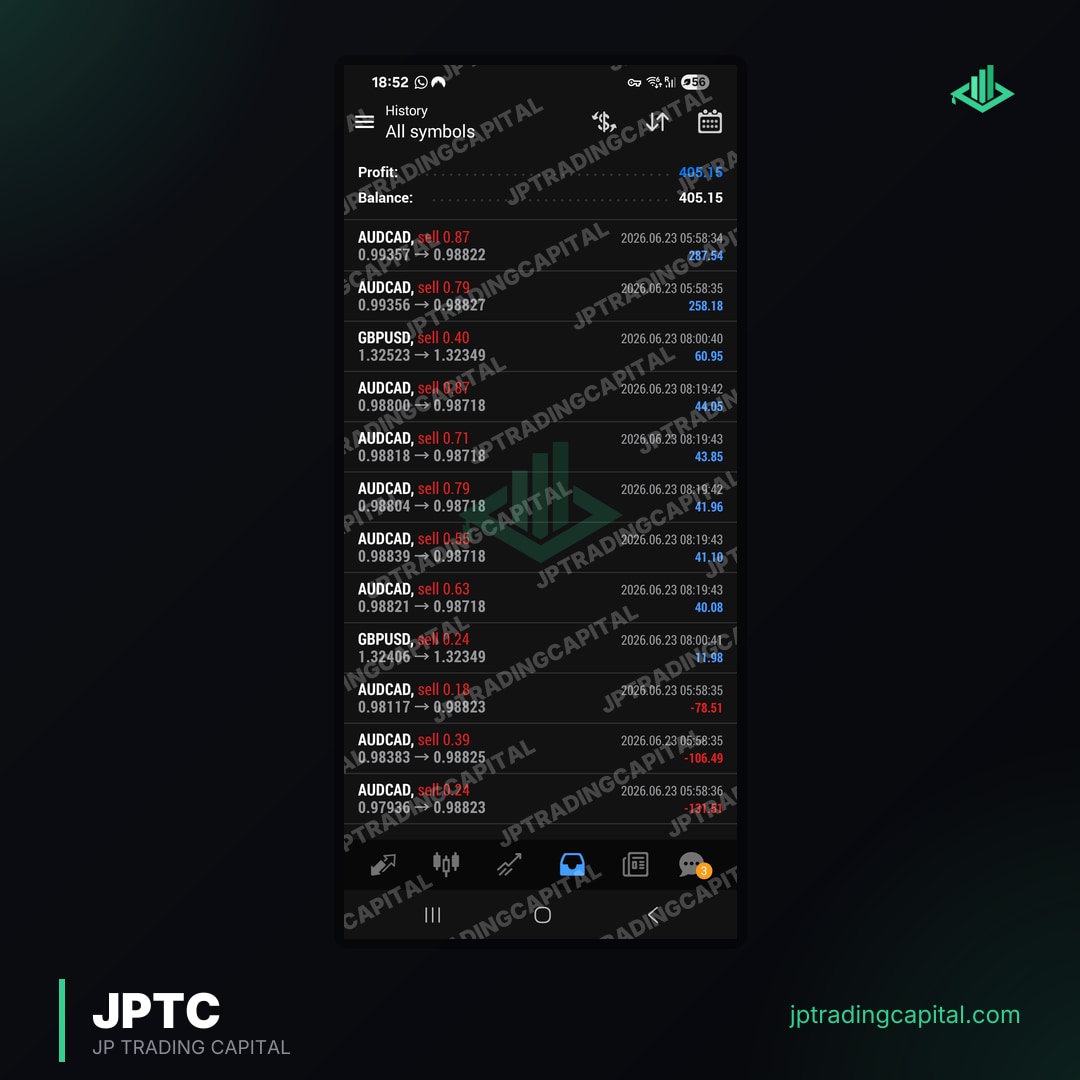
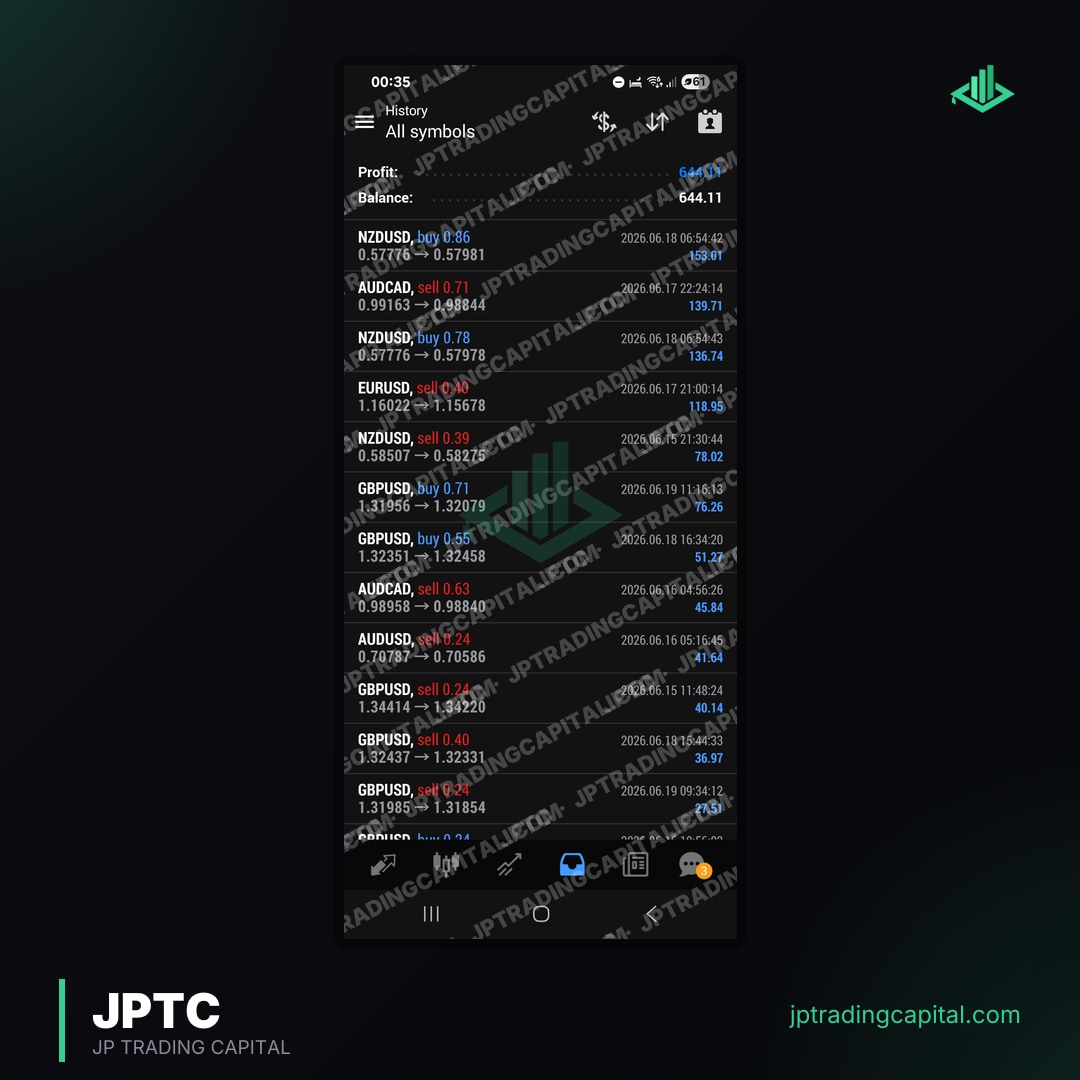
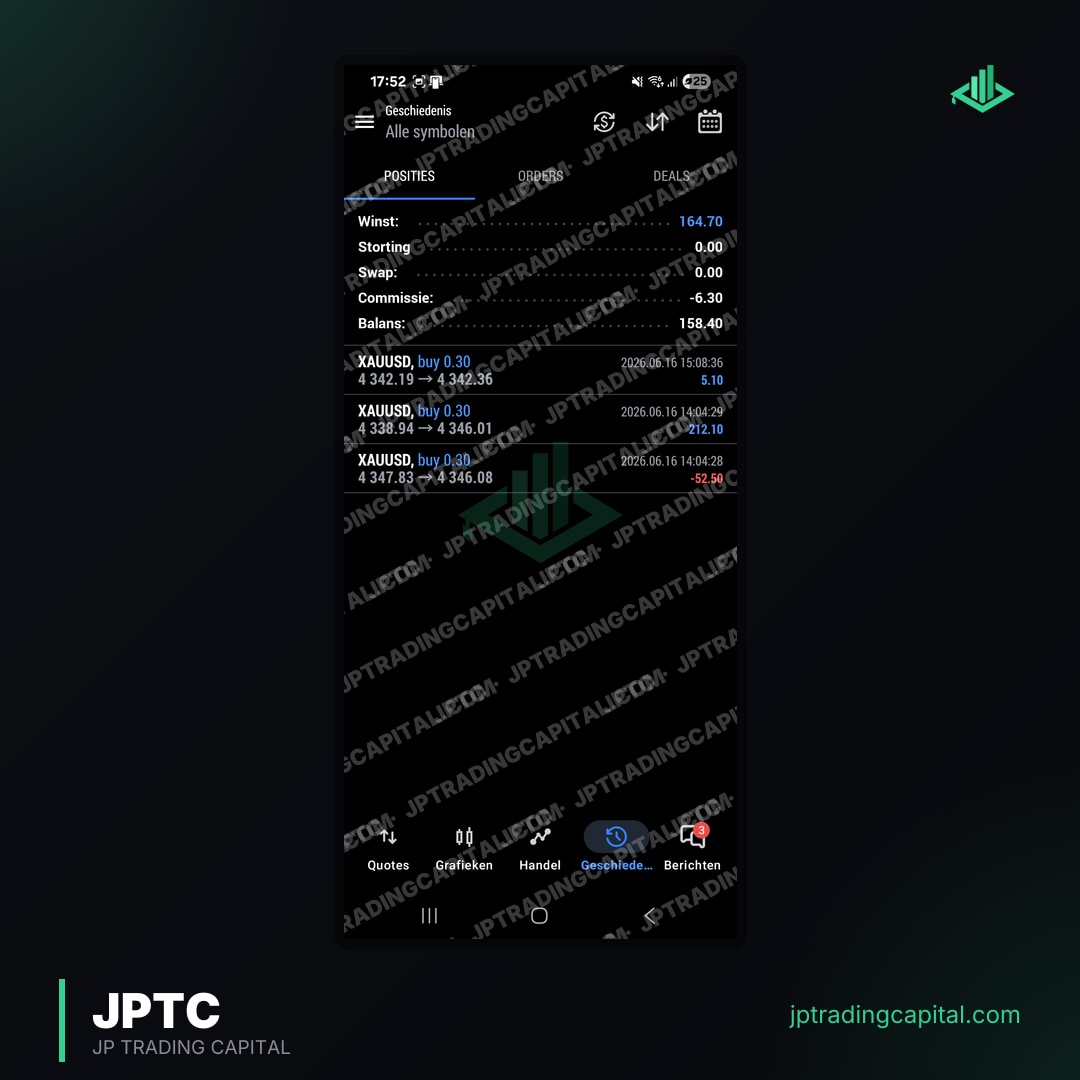
Generic EAs might not be optimized for the specific challenges of prop firm trading. EAs designed with prop firm rules in mind, like those in the JPTC EA Hub, incorporate features such as dynamic risk management, drawdown monitoring, and consistency checks. For an example of a robust, live-verified strategy, JPTradingCapital's published results shows consistent performance over multiple years, demonstrating the viability of EAs tailored for these environments. Our verified results speak to the effectiveness of such specialized tools.
My EA still isn't working, what should I check next?
An MT5 Expert Advisor that is still not working after the common checks should be tested on a demo account, added as an exception in your firewall and antivirus software, and given enough system resources to run reliably. The MQL5 community forum and the EA developer's support team are the next step when those advanced troubleshooting measures do not resolve it.
Testing on a Demo Account: The First Step
Always test a new EA or significant changes to an existing one on a demo account first. This allows you to observe its behavior, identify any errors in a practice environment, and confirm it interacts correctly with the broker's server and your MT5 platform. A demo account provides a safe sandbox to debug issues without risking capital. This is especially important for prop firm traders, where a single mistake can lead to a failed evaluation.
Firewall, Antivirus, and System Resource Management
Your computer's firewall or antivirus software can sometimes block MT5's internet access or interfere with EA operations, especially if the EA uses DLLs or WebRequests. Ensure MT5 and MetaEditor are added as exceptions in your security software. Furthermore, insufficient system resources (RAM, CPU) can cause MT5 to slow down or EAs to malfunction, particularly if you're running multiple charts, indicators, or EAs simultaneously. Regularly restart your MT5 terminal and computer, and consider upgrading hardware or using a dedicated VPS if resource limitations are suspected.
Consulting the MQL5 Community and Developer Support
The MQL5 community forum is an invaluable resource for troubleshooting. Many common EA issues have already been discussed and resolved there. If you're using a commercial EA, reaching out to the developer's support team is crucial. Provide them with detailed information, including error messages from the 'Experts' and 'Journal' tabs, your MT5 build number, broker name, and screenshots of your EA settings. This can significantly expedite the resolution process when your MT5 Expert Advisor is not working.
FAQ
Why is my MT5 EA hat blue and not green?
A blue hat icon indicates the Expert Advisor is attached to the chart but not actively trading. This usually means either the global 'AutoTrading' button in the MT5 toolbar is disabled (red), or 'Allow Algorithmic Trading' is unchecked in the EA's specific properties for that chart. Ensure both are enabled to turn the hat green.
What does 'Trade is disabled' mean in the MT5 Experts tab?
'Trade is disabled' typically means your trading account is not authorized to place trades, or the market for that instrument is currently closed. Check if your account is a demo or real account, if it's currently active, and if the market is open. Also, ensure you have sufficient margin if it's a live account.
How do I check if my EA is compatible with my broker?
Verify that the symbol names your EA uses match your broker's exact symbols (e.g., EURUSD vs EURUSD.pro). Also, check your broker's minimum lot sizes, execution policies, and any specific trading hour restrictions. The best way to test compatibility is always on a demo account with that specific broker.
Can a firewall stop my MT5 Expert Advisor from working?
Yes, firewalls and antivirus software can block MT5's internet access, preventing it from connecting to your broker's server or downloading necessary data. Add MT5 and MetaEditor to your security software's exception list to ensure proper communication.
Are prop firm rules a reason for my MT5 EA not working?
Absolutely. Prop firms have strict rules regarding daily/maximum drawdown, news trading, and consistency. If your EA's strategy violates these rules, the account will be terminated, effectively stopping the EA. Ensure your EA is configured to respect these limits, or consider EAs specifically designed for prop firm challenges like those offered by JPTradingCapital.
Related Articles
- Apex Trader Funding vs TopStep: Which Futures Prop Firm Is Best in 2026? · Read more →
- How to Choose the Right Prop Firm in 2026: Complete Selection Guide · Read more →
- Best Prop Firm EA MT4 in 2026: 7 Keys to Pass Challenges · Read more →
- Discord Trading Communities: Why Serious Traders Use Them · Read more →
- Can a Trading Bot Pass Gold EA Prop Firm Challenges? · Read more →
- Best MT4 Expert Advisor for Prop Firms: 7 Key Strategies (2026) · Read more →
- MT4 vs MT5 for Prop Firm Trading: Which Platform to Choose? · Read more →
- Best MT5 Expert Advisor in 2026: Pass Prop Firms Fast · Read more →
Forex & Gold Signals, No Monthly Fee
Entry, stop loss and targets on every trade we take. It costs you nothing: open an account through one of our partner brokers and they cover it for you. You place every trade on your own account.
Join the signals channel